PID Loop Analyzer is a software tool designed to help you optimally
tune your control loops with very little process disruption. You perform an
open loop bump test on your production loop and provide the test data to PID
Loop Analyzer, and it models your process and suggests PID tuning parameters based
on Lambda tuning rules. It allows you to select safe settings from aggressive
to conservative. You may also select "Trial and Error" and tune it by trial and error.
The first and most difficult step is getting process data out of your control system and into PID Loop
Analyzer.
First you must perform an open loop bump test; document a few parameters, and key them into PID
Loop Analyzer.
First Order Plus Dead Time (FOPDT) processes like flow loops
Collecting Data
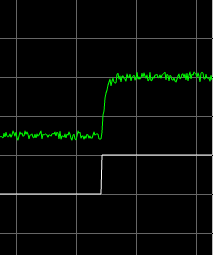
With the controller in manual and the process at steady state around its normal process target, step change the controller's output.
Make no other changes until the process returns to steady state. The output step must be large enough to noticeably change the
process variable, even in the presence of process noise. You may conduct multiple and bi-directional output steps.
Closely observe and document the following parameters
while performing an open loop bump test. Note that you can document the first five parameters before
performing the step test.
Controller Lower Range Value
Controller Upper Range Value
Starting Controller Output Value
Ending Controller Output Value
Starting Process Variable Value
Ending Process Variable Value
Time in seconds from initial output step until the process variable first responds (dead time)
Time in seconds from initial steady state process variable to final steady state process variable
Entering Data into PID Loop Analyzer
Click the FOPDT
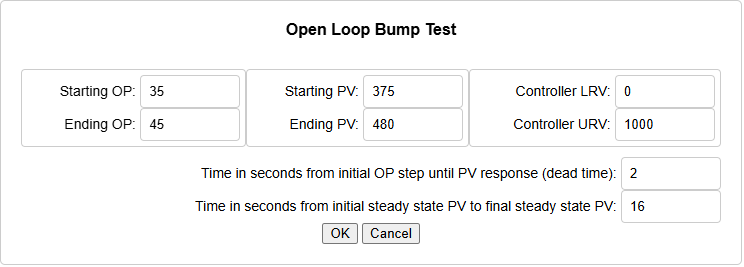
button in the bottom of the application window. You will be presented with the following dialog box.
Enter data into the appropriate fields and click "OK." You
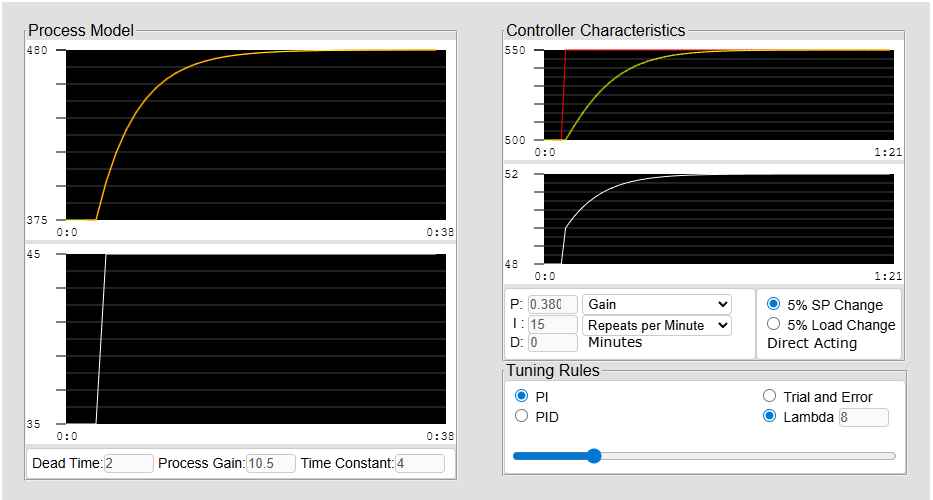
will be presented with a model of your process, recommended PID tuning
parameters, and a trend showing how your controller will respond to a set point
step change. An example follows.
The left trend area is your process model. The yellow trace
is the model, and the white trace is the controller output. You can tweak the
model by adjusting your original input data and clicking OK. You are now ready to analyze your PID loop
and experiment with different PID tuning settings without experimenting with
your production process. Moving the slider to the left makes the PID settings more aggressive. Moving it to the right makes
them more conservative. Selecting Trial and Error allows you to change the PID settings and observe how your process will respond to
the new settings.
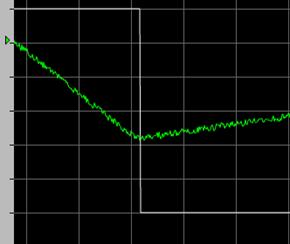
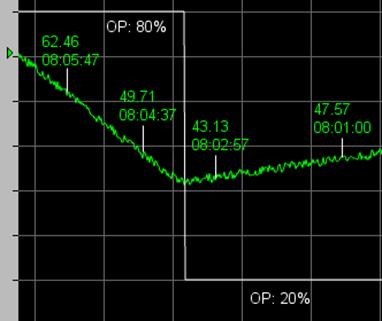
Perform an open loop bump test. The test will produce a process response characteristic of an integrating process; the process variable will be changing at one rate before the step change and a different rate after the step change. An example follows:
Determine and document the following values. Most trend packages have tools such as scooters that will facilitate data gathering.
Controller Lower Range Value
Controller Upper Range Value
Starting Controller Output Value
Ending Controller Output Value
Slope 1 PV 1 (an arbitrary data point before the output bump)
Slope 1 PV 2 (an arbitrary data point after Slope 1 PV 1 but before the output bump)
Elapse time in seconds between PV 1 and PV 2 (Delta Time)
Slope 2 PV 1 (an arbitrary data point after the output bump)
Slope 2 PV 2 (an arbitrary data point after Slope 2 PV 1)
Elapse time in seconds between PV 1 and PV 2 (Delta Time)
Time in seconds from initial output step until the process variable first responds (dead time)
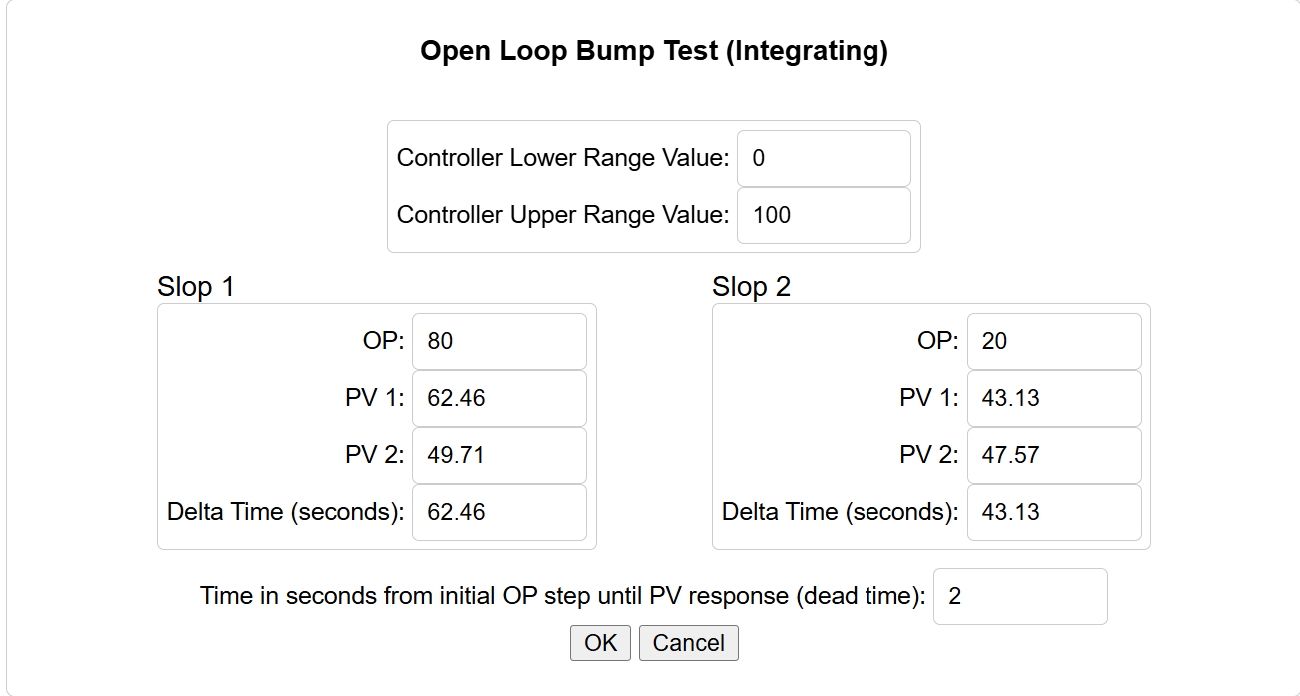
After you collect the data, click the Integrating button in the lower portion of the application window. You will be presented with a dialog box. Following is an example of a bump test with example date, a dialog box with the example data inserted, and the resulting model.
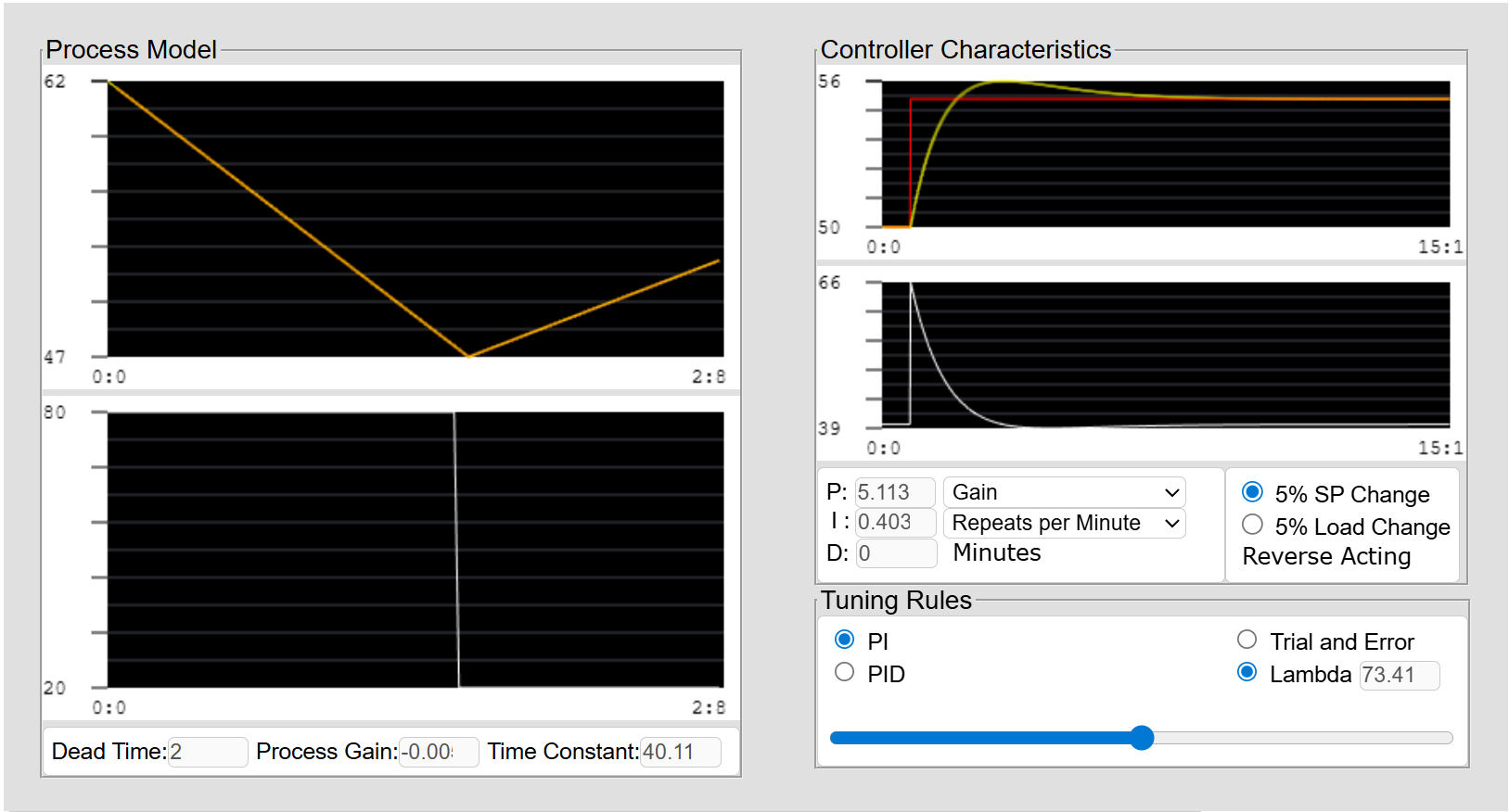
Enter data into the appropriate fields and click "OK." You will be presented with a model of your process, recommended PID tuning parameters, and a trend showing how your controller will respond to a set point step change. An example follows.
The left trend area is your process model. The yellow trace is the model, and the white trace is the controller output.
You can tweak the model by adjusting your original input data and clicking OK. You are now ready to analyze your PID loop and experiment
with different PID tuning settings without experimenting with your production process. Moving the slider to the left makes the PID settings more aggressive. Moving it to the right makes
them more conservative. Selecting Trial and Error allows you to change the PID settings and observe how your process will respond to
the new settings.